Every DailySync release since the first one, newest at the top. Open any release to see what changed and how to use it.
September connects fingerprint devices to DailySync, so a punch at the office becomes attendance on its own. It also brings contracts, per-person leave allowances, new attendance requests, and a clearer path for approvals: team leads review their own team, admins and HR can file for an employee, and every employee can have reviewers of their own.
Biometric devices
New
Connect a fingerprint device at your office so punches on it clock people in and out of DailySync. A small program on a PC at the site reads the device and sends each punch to DailySync. Once a punch’s PIN belongs to an employee, it becomes their attendance.
Where
Settings›Biometrics›Middleware
Who
Admins
How to use it
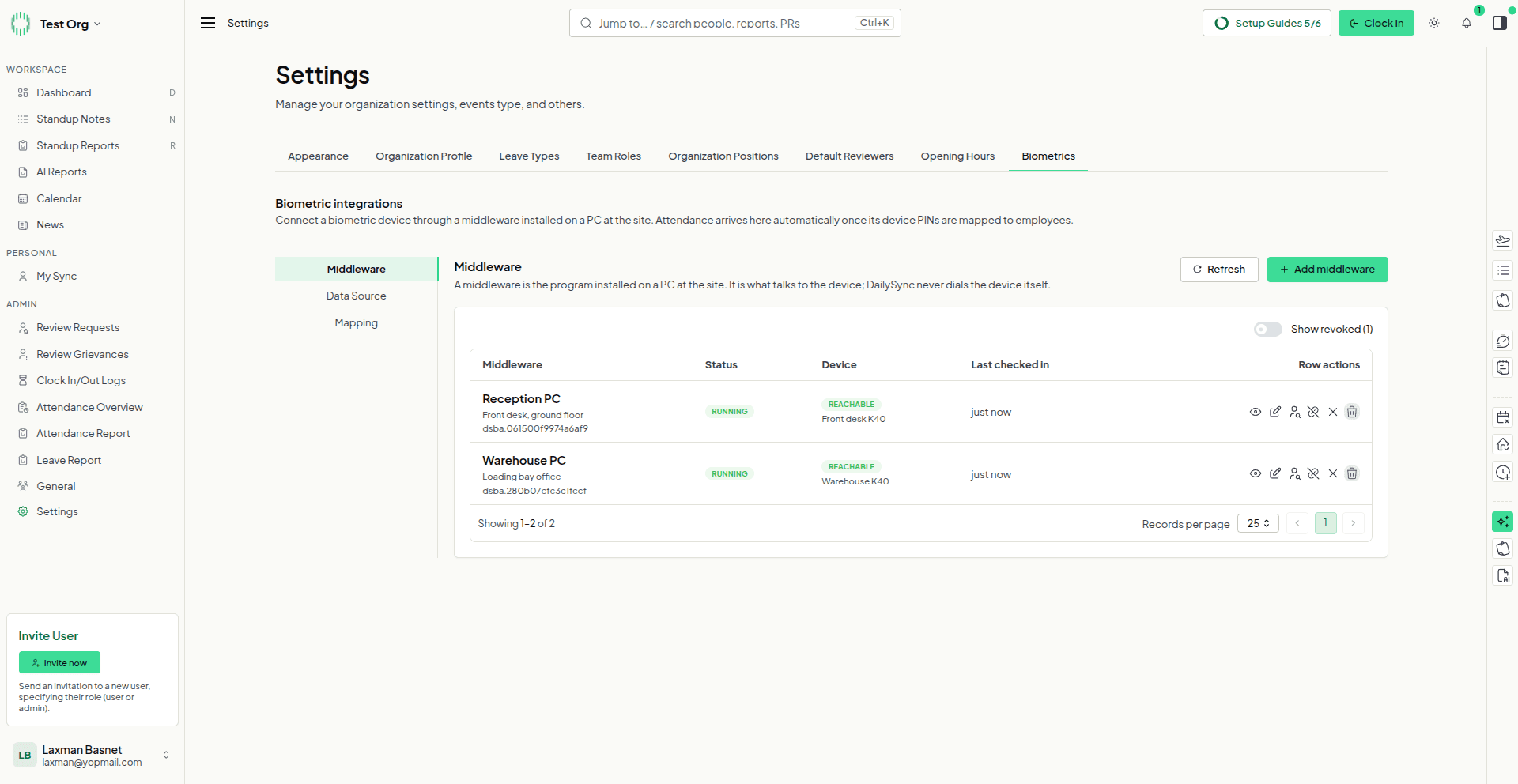
Add middleware for the PC at the site. You get a key to paste into the installer.
Check the status.Running means the PC is checking in; Reachable means it can see the device.
Set up the device with its address. DailySync sends it to the PC, so nobody types it at the site.
Manage it from the row — view it, change the device, or unbind the PC.
Open Data Source or Mapping to see what the device holds and who each PIN belongs to.
12345
Two sites connected: both PCs are running and both devices are reachable.
Linking device PINs to employees
New
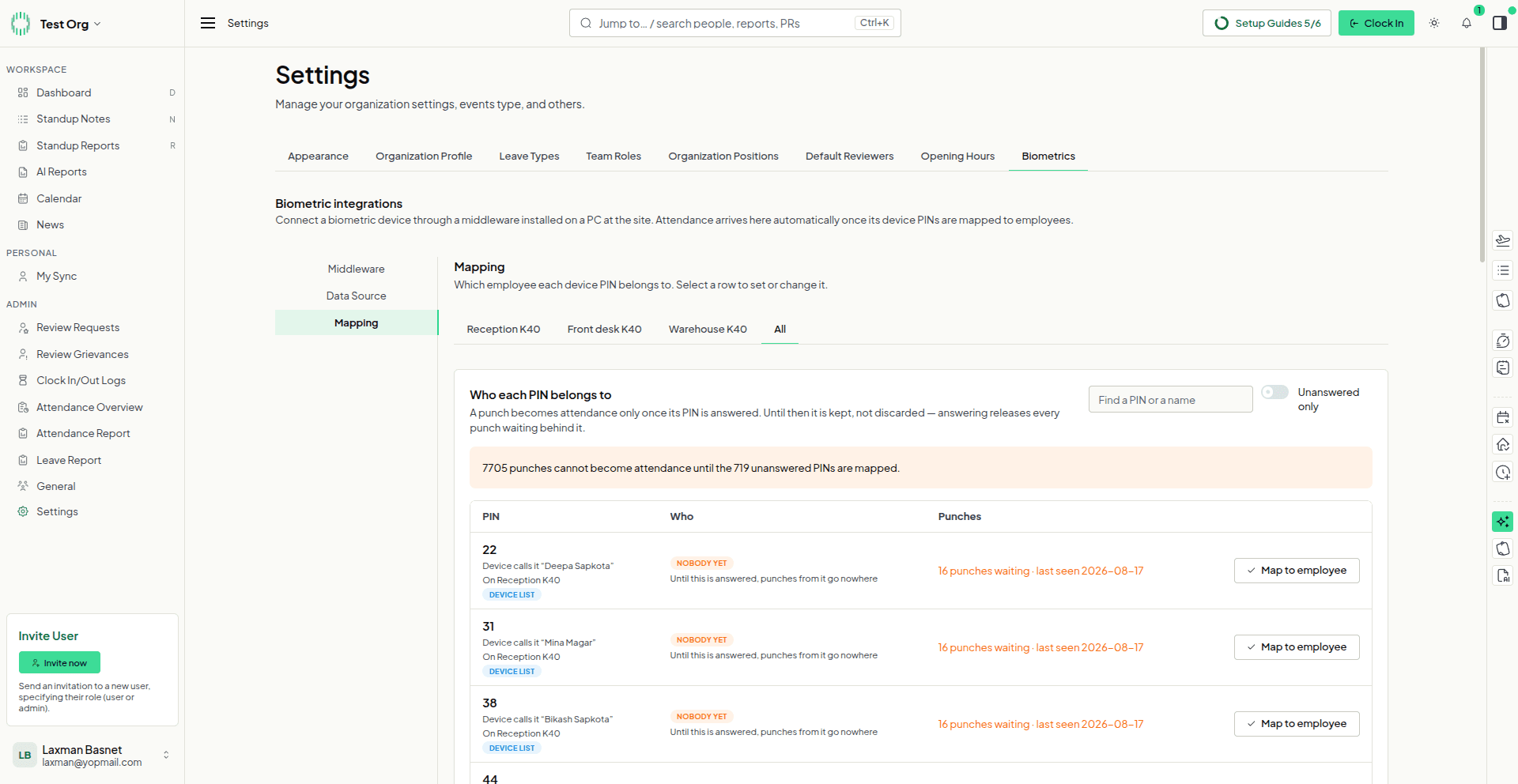
The device knows people by a PIN. Tell DailySync which employee each PIN belongs to and their punches become their attendance — including any punches already waiting. You can work through a whole device here, or bind a PIN from the employee’s own profile.
Where
Settings›Biometrics›Mapping
Who
Admins
How to use it
Pick the device, or All to see every PIN.
See what is waiting — how many punches are held until their PINs are answered.
Find an unanswered PIN. The name the device holds is shown beside it.
Map it to an employee. Their waiting punches become attendance straight away.
1234
PINs nobody has claimed yet, each with the punches waiting behind it.
Contracts
New
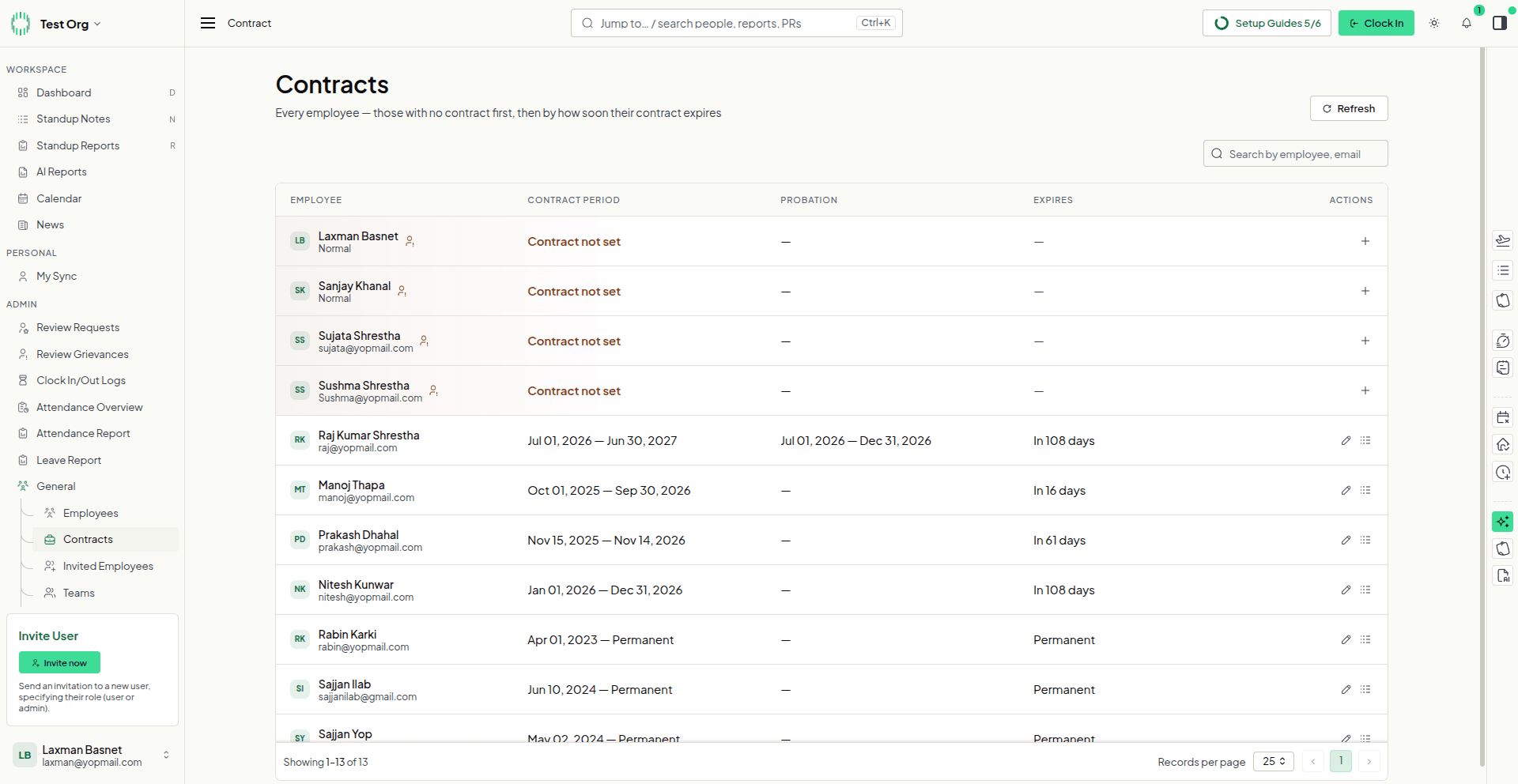
One list of every employee and their current contract. Anyone without a contract comes first, then people on probation, then fixed-term contracts by how soon they end, then permanent ones. Record a first contract, correct one, or renew it when it runs out.
Where
Sidebar›General›Contracts
Who
Admins
How to use it
Start at the top. Employees marked Contract not set have nothing recorded yet.
Check probation, shown with its own start and end dates.
Watch the expiry column — fixed-term contracts sort by the date they end.
Use the row’s actions:+ records a first contract, the pencil edits or renews one, and the list icon opens its history.
1234
Four employees without a contract lead the list; Manoj’s contract ends in 16 days.
Leave balance per employee
New
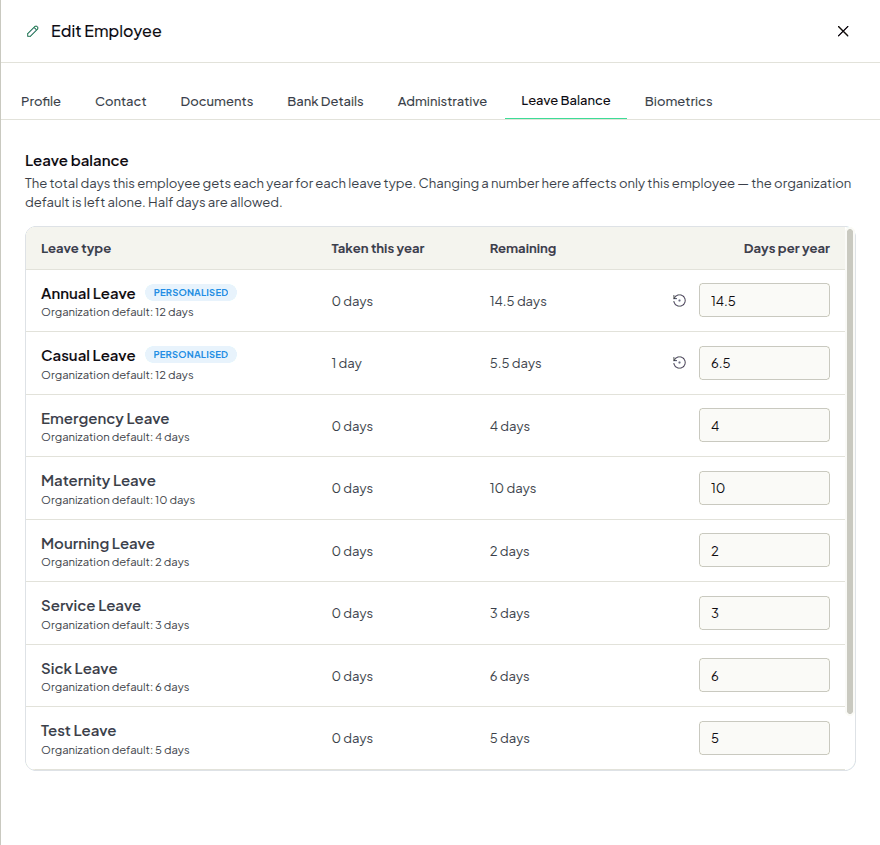
Give one employee a different yearly allowance for a leave type — half days included — without changing the organization default for everyone else. The employee sees their own allowance on their Leave page.
Where
Sidebar›General›Employees›Edit›Leave Balance
Who
Admins & HR
How to use it
Open the Leave Balance tab on the employee.
Type the days per year for a leave type. Half days such as 14.5 are fine.
Check the row. A changed type is marked Personalised, with the organization default beside it.
Reset it to go back to the organization default, then Save.
1234
Manoj gets 14.5 days of Annual Leave and 6.5 of Casual Leave; every other type follows the organization.
Missed check-in, missed check-out & Out Door Duty
New
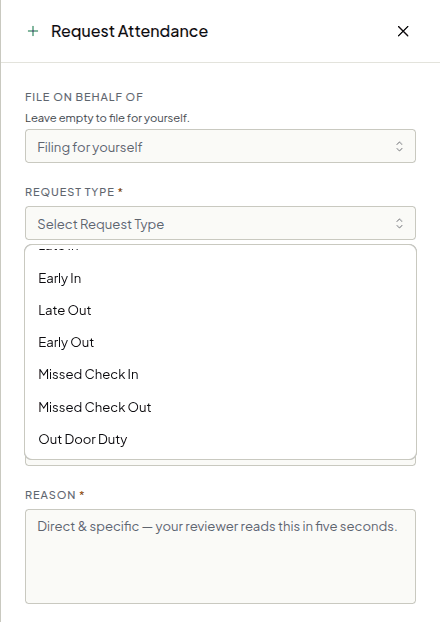
Three new attendance requests. Report a clock-in or clock-out you forgot, or a day spent working away from the office. Once approved, a missed check-in appears as a clock-in at the time you asked for, and an Out Door Duty day is tagged in the Daily Attendance Report.
Where
Sidebar›Requests›Attendance›Request Attendance
Who
Everyone
How to use it
Open Request Type.
Pick the one that fits:Missed Check In, Missed Check Out or Out Door Duty. Out Door Duty asks for the date only.
Say why in the reason, then Submit request.
123
The three new request types sit at the end of the list.
Filing a request for someone else
New
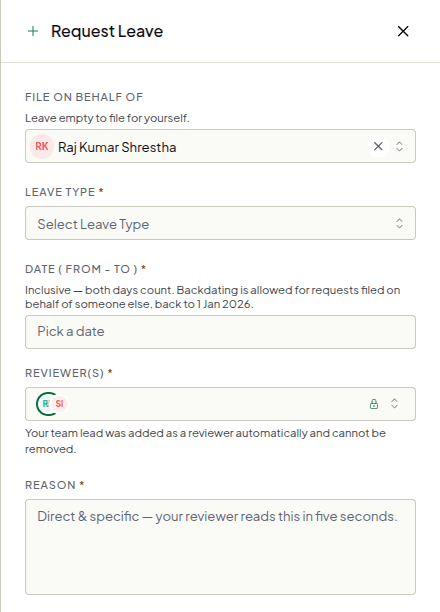
Admins and HR can raise any request for an employee — leave, WFH, attendance, overtime, substitute leave, equipment or a document. The request goes to that employee’s own reviewers, and everyone who sees it can tell who filed it.
Where
Any request form›File on behalf of
Who
Admins & HR
How to use it
Choose the employee in File on behalf of. Leave it empty to file for yourself.
Pick the dates. A request filed for someone else can be backdated to the start of the year.
Check the reviewers. They are the employee’s own; a team lead is added automatically.
Give the reason and submit. The request shows who filed it.
1234
A leave request filed for Raj: his team lead is already a reviewer and cannot be removed.
Team leads review their team’s requests
New
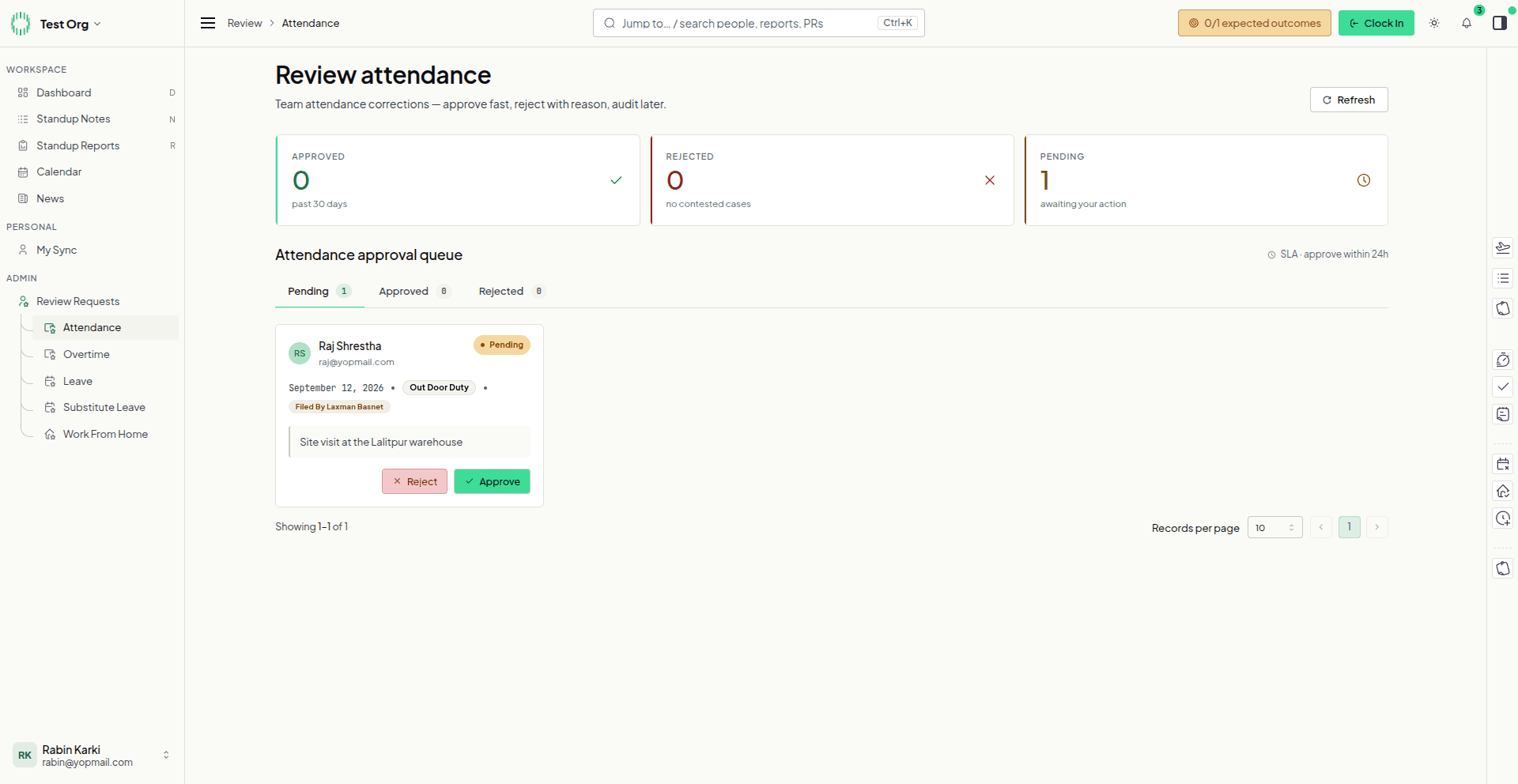
A team lead can now approve their own team’s leave, WFH, attendance, overtime and substitute leave requests without being made an admin. Requests raised by the team reach the lead automatically, and the lead sees only their own team’s queue.
Where
Sidebar›Review Requests
Who
Team leads
How to use it
Open Review Requests in the sidebar and pick the request type.
Start with Pending — it holds what is waiting on you.
Read the request. It shows the type, the reason, and who filed it.
Approve or reject it straight from the card.
1234
Rabin leads Main Team, so Raj’s Out Door Duty day waits in his queue.
Default reviewers for each employee
New
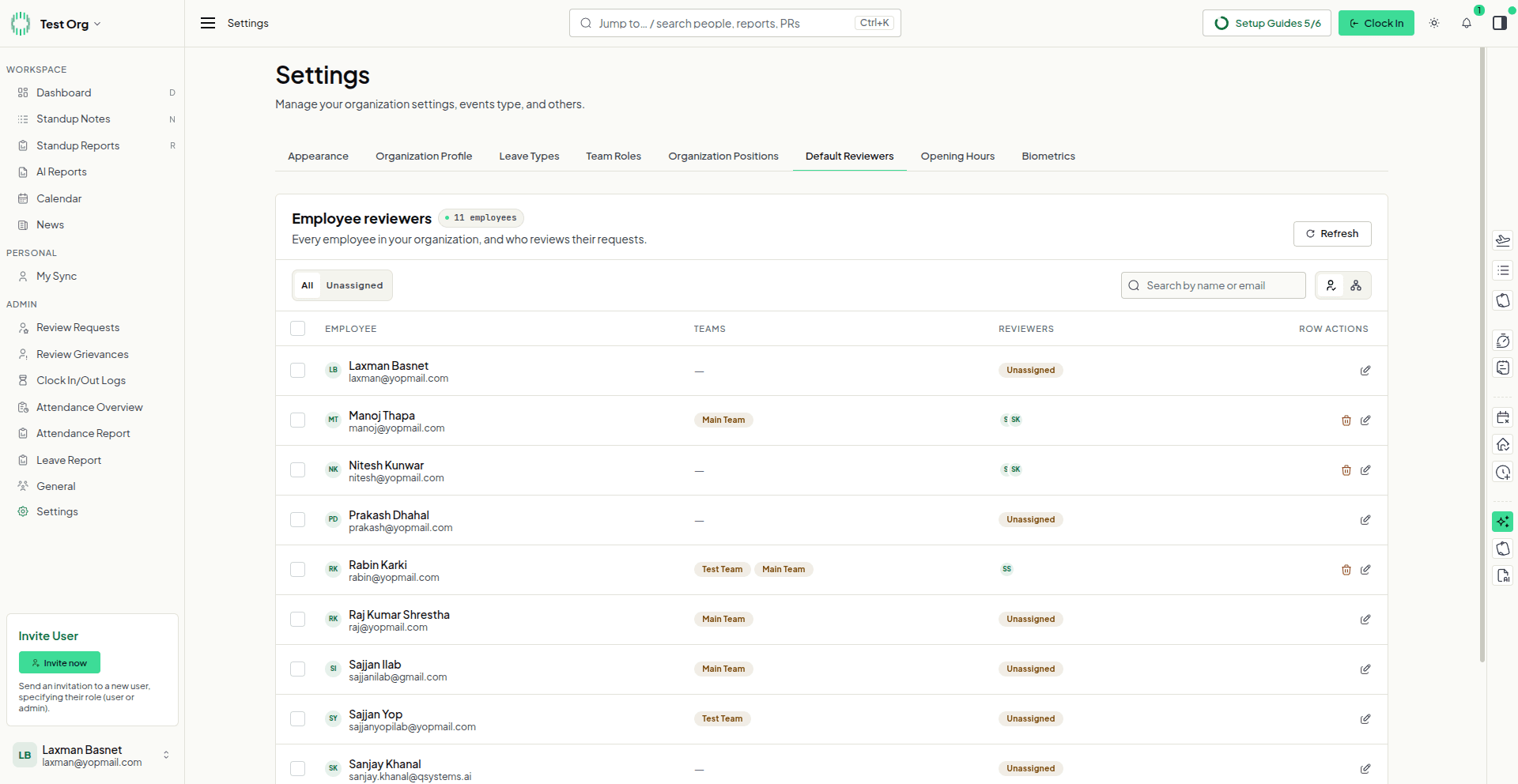
Choose who reviews each employee’s requests. Their reviewers are filled in on every request they raise and cannot be removed. Anyone without their own reviewers uses the organization’s fallback list, so nothing changes until you assign someone.
Where
Settings›Default Reviewers
Who
Admins
How to use it
Filter to Unassigned to see who still needs reviewers.
Spot the gaps.Unassigned means the fallback list reviews their requests.
Check each person’s reviewers in the Reviewers column.
Edit a row to set their reviewers, or tick several rows and use Add reviewers to selected.
Switch to the fallback list to change who covers everyone else.
12345
Manoj’s requests go to two named reviewers; Laxman has none yet, so the fallback list covers him.
Improvements
Requests & approvals
A request filed for you names who filed it; one you filed for someone else names who it is for.
The reviewers set for you appear as locked chips in every request form.
Clear all in the reviewer picker leaves locked reviewers in place.
Attendance
Punches from a fingerprint device are marked as such in the clock in / out records.
An approved Missed Check In shows as a clock-in at the time requested.
An Out Door Duty day carries a tag in the Daily Attendance Report and has its own column in the export.
Out Door Duty asks for the date only.
Leave
Your Leave page shows your yearly allowance for each leave type.
The leave form shows how many days you have left as you pick a leave type.
Your team
HR can open and manage the Employees pages.
The employee’s Administrative tab shows the contract on file.
Search the Contracts page by first and last name.
Settings
Default Reviewers warns you when some employees have no reviewers and no fallback list is set.
On the website
A Release notes page lists every release, newest first.
The privacy policy explains how Google Calendar data is used.
August brings two new ways to raise things in DailySync. Substitute Leave lets anyone claim a day off for a day they worked, reviewed in two stages. Grievances give people a way to raise a workplace concern — anonymously if they prefer — with the reviewers they choose. Leave types can now require a few days’ notice, and every request shows who decided it and when.
Substitute Leave
New
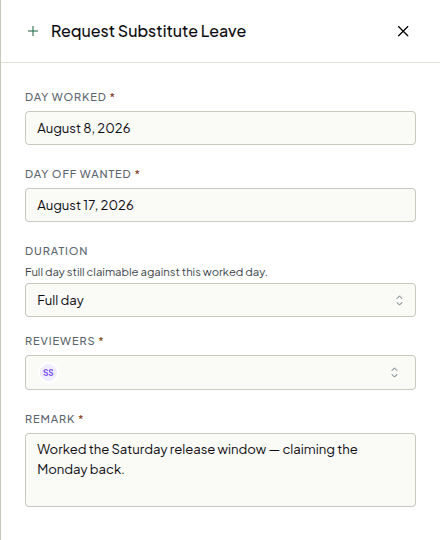
Worked on a day you were meant to be off? Claim the time back. Name the day you worked, the day you want off in return, and who should review it. The day off can fall either side of the day worked, and it can be a full day or half a day.
Pick the day you want off. Either side of the day worked is fine.
Choose a full day, or the first or second half.
Pick your reviewers and say why you are claiming it.
1234
A claim for the Saturday worked, taken back as the following Monday.
Substitute Leave — the reviewer’s queue
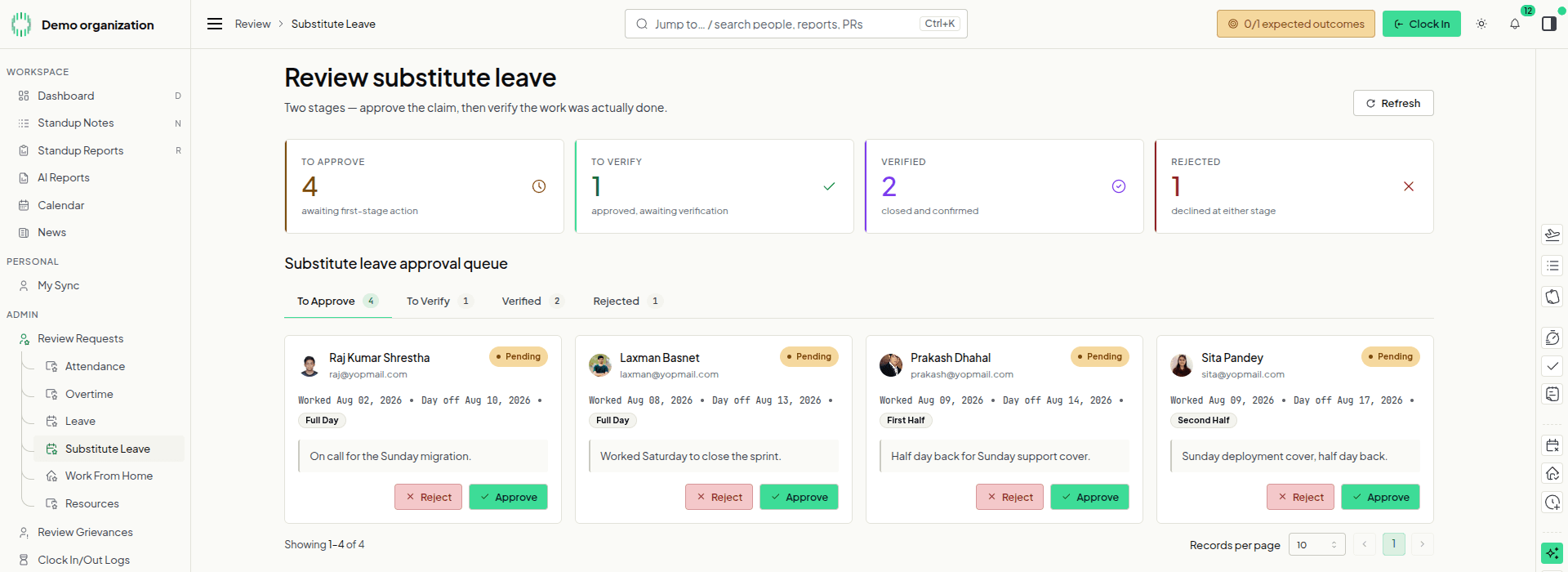
Claims are reviewed in two stages: approve the claim, then verify the work was really done. Four tiles count where everything stands, four tabs split the queue by stage, and each card offers only the actions its claim is up to.
Where
Review Requests›Substitute Leave
Who
Reviewers & Admins
How to use it
Read the tiles — to approve, to verify, verified, rejected.
Switch tabs to narrow to one stage.
Check the claim — both dates and whether it is a half day.
Approve or reject straight from the card.
1234
The approval queue. Prakash’s claim is a first half day; Sita’s is a second half.
Substitute Leave — the review detail
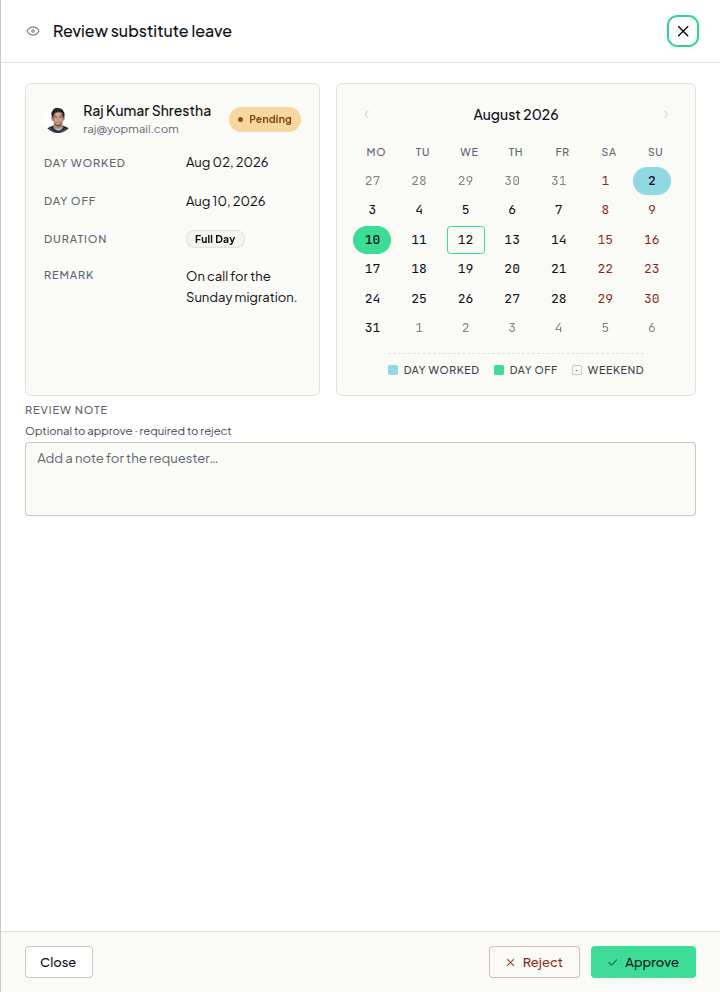
Open a claim and both days are drawn on a month calendar — the day worked and the day claimed off, each marked and keyed to the legend below it. When the two fall in different months the calendar reaches both.
Where
Review Requests›Substitute Leave›open a claim
Who
Reviewers & Admins
How to use it
Read the claim — the two dates, the duration and the remark.
Check the calendar for the day worked and the day off.
Write a review note — optional to approve, required to reject.
Approve or reject.
1234
Both claimed days marked on one month, with the legend underneath.
Substitute leave across your reports
New
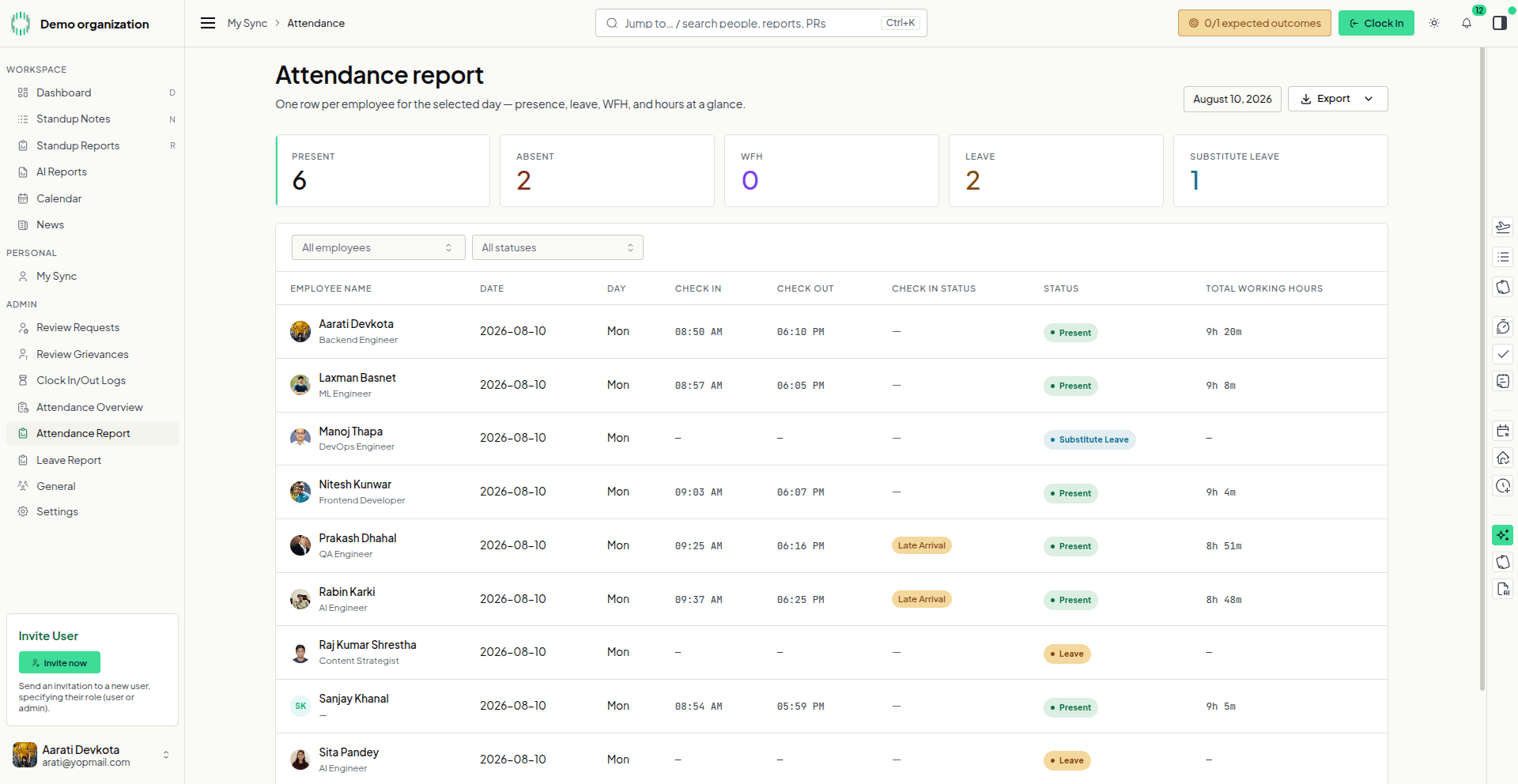
Approved substitute leave counts everywhere absence already counts. The attendance report gains a fifth tile and a status of its own; the dashboard’s who’s-out widget gains a fourth roll-call tile; and the Calendar shows substitutes beside leave, with their own filter and legend entry.
Where
Attendance Report›Dashboard›Calendar
Who
Admins
How to use it
Pick the day you want to report on.
Read the fifth tile — substitute leave, counted separately.
Find the row — it reads Substitute Leave, with no clock times.
Export to PDF, Excel or CSV.
1234
Monday 10 August: six present, two on leave, one on substitute leave — and Late Arrival against the two who came in after nine.
Grievances
New
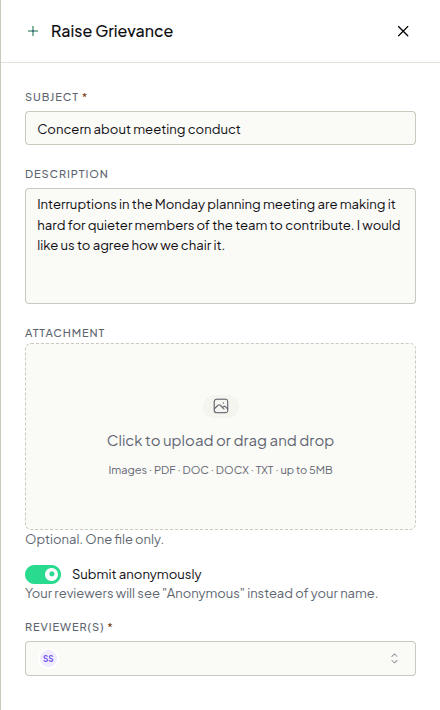
Raise a workplace concern with the people you choose to review it. Give it a subject and a description, attach a file if you have one, and pick your reviewers. Tick Submit anonymously and they see “Anonymous” instead of your name.
Where
Sidebar›Grievances›Raise Grievance
Who
Everyone
How to use it
Write a subject and describe the concern.
Attach a file — image, PDF, DOC or TXT, up to 5 MB.
Submit anonymously if you would rather not be named.
Pick your reviewers — colleagues still with the organization.
1234
Raising a grievance anonymously. Your reviewers see “Anonymous” in place of your name.
Reviewing a grievance
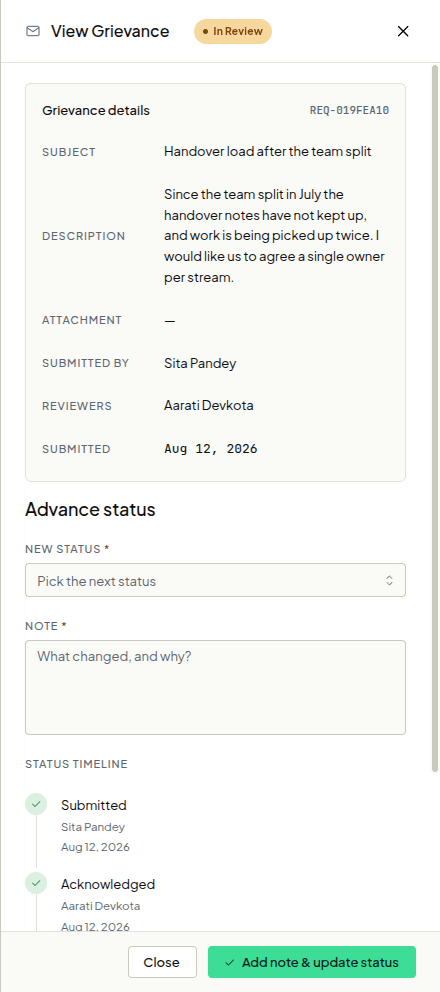
A grievance is not approved or rejected — it moves forward one step at a time: Submitted, Acknowledged, In Review, Resolved. Each move takes a note, and the timeline keeps them, so whoever raised it can see it is being handled.
Where
Sidebar›Review Grievances›open one
Who
Reviewers & Admins
How to use it
Read it in full — subject, description and who raised it.
Advance the status and write the note that goes with the move.
Follow the timeline of everything that has happened so far.
Add the note and update in one action.
1234
A grievance part-way along the ladder. Every earlier step kept its note.
Advanced notice on a leave type
New
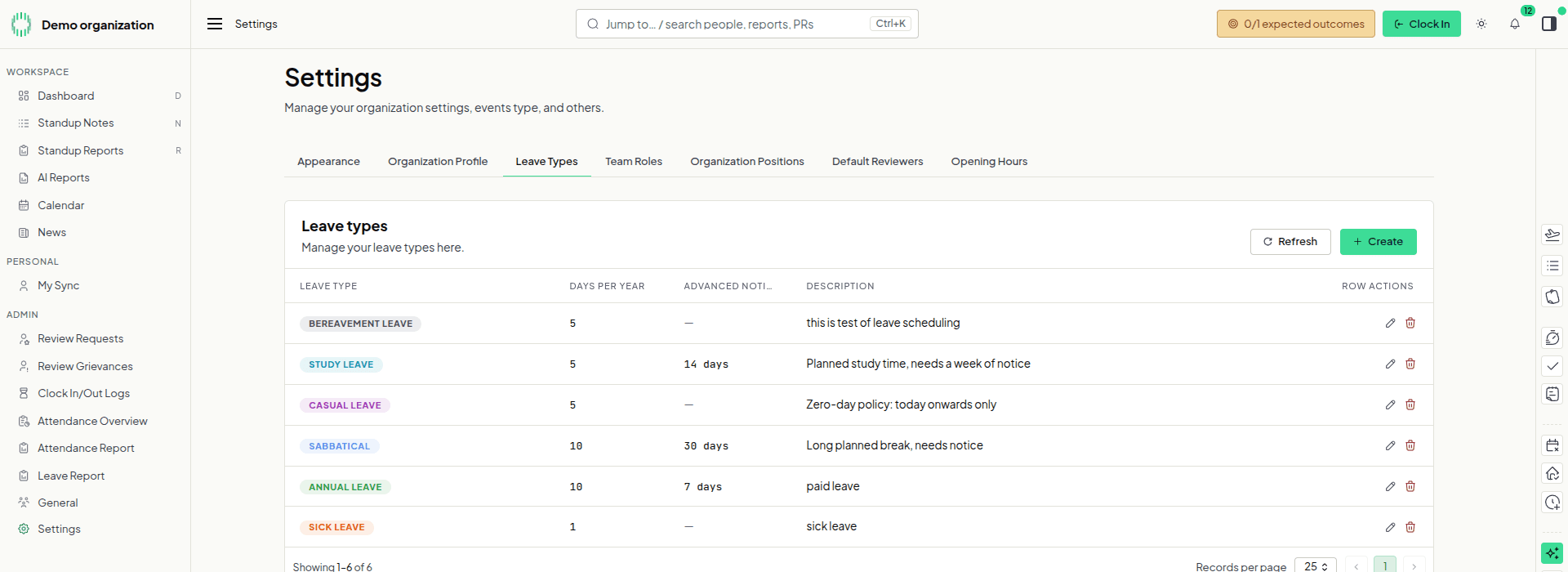
A leave type can now require a number of days’ notice. Set it once on the type and the request form enforces it — the earliest date anyone can pick moves out by that many days, and the rule is written out under the date field. Leave it empty and the type carries no policy.
Where
Settings›Leave Types
Who
Admins set it, everyone sees it
How to use it
Create or open a leave type.
Set Advanced notice in days.
No policy shows a dash.
A policy shows the notice it needs.
1234
Sabbatical needs a month’s notice, Study Leave a fortnight; Casual and Bereavement Leave carry none.
Requests show who decided, and when
Improved
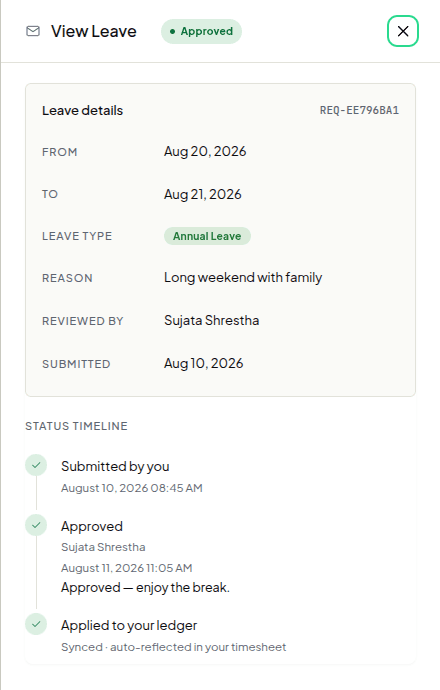
All six request drawers — leave, WFH, attendance, overtime, equipment and document — carry the whole decision trail. A request now shows when you submitted it and who reviewed it, and the timeline keeps the decision, its date and the reviewer’s note together instead of scattering them.
Where
Any request›open it
Who
Everyone
How to use it
Reviewed by — whoever acted on it.
Submitted — the day you raised it.
The timeline — the decision, its date and the note, together.
123
Approved on the 11th, with the note kept beside the decision.
Improvements
Requests & approvals
The decision date and the reviewer’s note sit together in the timeline, where they read as one decision.
A pending request names the reviewer it is waiting on; a decided one names whoever acted.
Status filters on the request lists apply as soon as you set them.
Leave
A leave type keeps the colour you pick, from the moment you save it.
Today is marked in every date picker, so the current day is easy to find.
Substitute leave can be claimed as a first or second half day, counted as 0.5.
Your team
Employees who have left sort to the bottom of the attendance overview, and their rows are faded.
Resource review cards line their actions up along the right-hand edge.
Reports & email
The daily attendance report arrives at your organization’s own closing time, in its own time zone.
New joiners receive a welcome email when their account is created.
The monthly product update carries a one-click unsubscribe.
Around the app
The notifications popover matches the sticky-notes panel it sits beside.
Selected people in the employee picker are tinted to match your theme, in light and dark.
Files you attach appear in the list with the kind of document they are.
The largest release so far. DailySync gains an assistant you can ask questions in plain language, insights and summaries that write themselves, and a portal redesigned from its foundations with five themes to choose from. dailysync.ai launches alongside it.
DailySync AI
Ask a question in your own words A conversational assistant that answers questions about your people, teams and projects, and writes its answer out as it goes.
Quick insights on the dashboard Insights about employees, teams and projects, surfaced where you already look and refreshed when they go stale.
Daily summaries A summary of the day for each person and each team, plus a “Your daily summary” view of your own.
AI reports Four kinds of report, generated on request and prepared while you carry on working.
An executive summary A scheduled summary for leadership, with its own CXO Report view, a dashboard widget and an email.
Chat that keeps its place Your session reloads in the order you wrote it, and the send button holds while an answer is still arriving.
A redesigned portal
Five themes Choose how the portal looks in appearance settings. Every screen is drawn for light and dark.
A rebuilt shell New topbar, clock, outcome pill and quick-actions rail, with a command palette on ⌘K.
Drawers beside your work Chat, expected outcomes and clocking in and out open beside what you are doing instead of taking you somewhere else.
Sidebar items are real links Middle-click or ⌘-click a section to open it in a new tab, and groups stay expanded while you work inside them.
Setup guides from the header The setup guide returns to the header, with step counts and navigation through the tour.
A new website
dailysync.ai A new site sharing the app’s design language, with a demo you can book from any page.
Signing up and signing in Creating an account, accepting an invitation and verifying by one-time code all happen on the website and hand you into the app.
Shared and found cleanly Structured data for search engines, a proper not-found page, and link previews that render properly when someone shares a page.
Standups and the dashboard
Nudge someone Nudge a person who has not filed their standup, straight from the roll call.
Leave is taken into account Anyone on leave today is left out of the count of standups still expected.
A clearer roll call Larger avatars, and leave and work-from-home marked with their own icons.
Today’s schedule The schedule keeps its height and scrolls inside itself, and attendance reads “N of M on site”.
Signing up and email
Real addresses only Sign-up turns away disposable and throwaway addresses, and says so on the form.
Email links land where they meant to Follow a link from an email and you arrive at the page it pointed to, even if you have to sign in on the way.
Redesigned throughout Every email DailySync sends, reports included, follows the same theme-aware design.
Contact us Messages sent from the website reach you by email.
Every request form proposes the reviewers your organization has chosen as defaults, so raising something takes one less decision — and you can still change them. Attendance requests learn two new types, forms check the dates you pick against the ones you have already claimed, and teams can be archived.
Requests
Default reviewers Attendance, leave, work-from-home, overtime, document and equipment requests all arrive with your organization’s default reviewers filled in.
Still yours to change The reviewers are a starting point, not a rule — swap them on any request before you send it.
Early out and late out Attendance requests cover leaving early and clocking out late, alongside the arrival types.
The type follows your schedule An attendance request works out what it is from your organization’s hours, so the form no longer asks.
Dates you have already claimed Leave, work-from-home, overtime and attendance forms check the dates you pick against your existing requests, in your own time zone, and say so before you submit.
Hours as you type Overtime and attendance requests work out their hours while you edit them.
Attendance
One row per day Records for the same day group together, showing the first and last time of the day.
Approved times show through An approved clock-out time appears on the attendance views that quote it.
Teams
Archive a team A team that has finished its work can be archived, and restored later if it starts up again.
Around the app
Leave types keep their colour The colour on a leave type carries through to the request and review pages.
Pinned notes A note pinned from anywhere in the list appears under Pinned notes, whichever page it came from.
Standups follow you Your standup notes are the same on every device, and anything you have typed locally survives the sync.
Guided tours The setup guide covers leave types and positions, and the tour steps navigate properly.
The release that turned DailySync from a standup tool into a workforce one. Clock in and out, claim overtime, request a late arrival, and read both back on new attendance and leave reports. Roles decide what each person can reach, weeks get expected outcomes, and a setup guide walks a new organization through the rest.
Clock in and clock out
Record your day Clock in when you start and out when you finish, with a remark on either if the day needs explaining.
The day’s log Every clocking is kept, so you and your admin can read back the whole day rather than a single pair of times.
Your organization’s hours Set the hours your organization runs to; arrivals and departures are measured against them.
Two new kinds of request
Overtime Claim hours worked beyond your normal day, and have them reviewed like any other request.
Late arrival and early departure Raise an attendance request for a day that did not run to schedule, with the reason attached.
Reviewed the same way Both arrive in a review queue with a timeline, a remark field, and approve or decline on the card.
Reports
Attendance report A day-by-day view of who was in, filtered by employee or year, with a drawer holding the detail behind any row.
Leave report Leave read back per employee, so a pattern is visible without opening each request.
AI Reports Insight history is now AI Reports, with a date filter, one form for generating any of them, and a button to summarise a report you are reading.
Quick insights Insights sit on the dashboard, and can be asked for again if one does not arrive.
Roles and permissions
Roles decide what people reach Each person’s role now governs which pages and actions they see, rather than everyone seeing everything.
Define your own roles Create the roles your organization actually uses and set what each one may do.
Auditors A team can carry an auditor alongside its lead — someone who reads the team’s standups without being asked for one.
Planning the week
Expected outcomes Set out what a week is meant to deliver, item by item, and publish it to the team.
Carried into the report Published outcomes appear in the standup report, beside what actually happened.
Counted in the header The header shows how many of the team’s objectives are set.
Getting set up
Setup guide A guide in the header lists what your organization has yet to configure and links straight to each setting. Steps tick off as you finish them, while you watch.
Positions Define the positions people hold, mark which are stakeholders, and pick one on an employee’s record.
Colour your leave types Give each leave type a colour so it is recognisable wherever it appears.
Choose who approves Name the admins a leave or work-from-home request should go to, and only they are asked.
Around the app
Sticky notes and to-dos A floating button opens your notes and to-dos from any page, and pinned notes stay at the top.
Quick actions A side rail of quick actions, which you can hide if you would rather not have it.
Standup reports for any day Pick a date on the standup report and read an earlier day.
Notifications The notifications page filters exactly as the header does, and a link in a notification opens in a new tab, leaving DailySync where you left it.
On a phone The side navigation, the notifications page and the document form all fit a phone screen.
Sharper images Photos and documents you upload are resized on the way in, so pages carrying them load quickly.
If you belong to more than one organization, you can now move between them from inside the app. Teams get a daily summary by email, AI reports move onto the dashboard, and the tables gain filters.
Organizations
Switch organization Move between the organizations you belong to without signing out and back in.
Your team’s day
A summary each evening A summary of the team’s day is sent by email when the day closes.
Team reports for the whole team The team report is no longer a lead’s view alone — everyone on the team can read it.
Dashboard
AI reports, in place AI reports are part of the dashboard rather than a place you go to separately, with colour-coded rows.
A dot on the day Days carrying a standup or a calendar event are marked with a dot.
Tables and lists
Filters Filters across the tables, for narrowing a long list down to what you came for.
Clearer search The equipment and document request lists say what their search box will match.
Your profile
Department Your company profile shows the department you sit in.
Only what you want to give Blood group, medical history and marital status are optional.
Notifications
Open in place Notifications open from the header where you are, instead of taking you to a page.
A maintenance release: a rebuilt organization profile, standup history that reads back cleanly, mentions that show a face, and a more consistent set of icons and controls across the app.
Standups
History Standup history reads back in order, and the date selector moves through it.
Mentions show a face The people you mention in a standup appear with their photo.
Your organization
Profile form The organization profile form was rebuilt.
Logos An organization without a logo shows a placeholder in its place.
Dashboard
Opens where you look first The dashboard opens on the heatmap, and who is on site reads from the donut chart.
News
Find an author Search for an author while writing a news item.
Images A clearer uploader for the image on a news item.
Access and accounts
Calendar editing is an admin action Adding and editing calendar events belongs to admins.
Passwords take special characters Passwords may include special characters.
Around the app
Icons and controls One icon set and one set of control heights, used consistently, including down the sidebar.
Teams list The teams list drops its export button and row checkboxes for a cleaner table.
The first full platform release: a website you can sign up on, dashboards for admins and for employees, structured daily standups, a complete request workflow, and AI insights you can read as a report or simply ask for.
Getting started
The website dailysync.ai, where you sign up, verify by one-time code and create your organization.
Invite your team Invite people by email, as an admin or as an employee, and track who has accepted.
Recover an account A one-time code returns access to an account whose password has been forgotten.
Dashboards
For admins Attendance as it happens, a team performance heatmap, leave and work-from-home trends, a calendar of everything, and the lists behind them.
For employees Your heatmap next to your team’s, your attendance, the calendar, your requests, and the news feed.
Read at a glance Donut and bar charts for the numbers that matter, rather than a table to interpret.
Daily standups
Write your standup A tab per team, a panel of guidance beside the form, and history you can filter by date.
Mention anyone Type @ to reference a person, a team or a project.
Run the meeting A live standup page for team leads, with a summary per person, reminders, and an AI summary when the meeting closes.
Scored, and read in context Each note carries a score, and the report shows who was on leave or working from home that day.
Requests
Four kinds Leave, work from home, equipment and document access, each reviewed with a note that stays attached to the decision.
Filter to what is waiting Filter requests by status and by date range, on every request list.
Equipment tracked Equipment is dispatched and returned against your inventory, counted in and out, with refundable items marked as such.
AI insights
Reports Standup analysis, and insights for employees, teams and projects, in tables you can search, sort and export.
Ask in plain language Query the same insights conversationally — “Summarize the AI Team’s activity this week.”
A conversation that keeps its history The assistant remembers the session, so you can pick up where you stopped.
Take the summary with you Download a team’s daily summary.
Running your organization
People and structure Employees, invitations, teams, projects and departments, each with its own list, detail and history.
Calendar and news One-off and recurring events, the event types you want to keep them under, and news published to everyone’s dashboard.
Search Search across employees, teams and projects from wherever you are.
Settings Your organization’s profile, the team types and roles you use, and the kinds of calendar event you keep.
Your account
Profile Your photo, bio and details, kept up to date by you.
Password Change your password from settings.
Where DailySync began: daily standup notes written against each team’s own questions, read and commented on by team leads, with leave and work-from-home requests, news, and the teams and projects behind them.
Daily standups
Your team’s questions Each team sets the questions its standup asks; you answer them for the day and can revise an answer as the day goes on.
Read and commented on Team leads read their team’s notes and comment on them.
Look back Read what you or your team filed on an earlier day.
Leave and work from home
Raise a request Ask for leave or to work from home, against the leave types your organization defines.
Change it while it waits Edit or withdraw a request for as long as it is still pending; once it is decided, it stands.
Approve or decline Approvers see what is waiting on them and act on it.
Teams and projects
Teams Group people into teams, each with its own standup questions and its own lead.
Projects Projects with start and end dates and a status you can see at a glance.
List or cards Switch teams and projects between a table and a card view.
Your organization
People Employee records with positions, departments and photos.
News Publish announcements to everyone in the organization.
Notifications and email DailySync raises a notification when something needs you, and emails the people who need to know.
Working through a long list
Filter, sort and page Every list filters, sorts and pages, so a table stays usable as it grows.
Ready when you are
Your organization runs on data. DailySync.AI turns it into execution intelligence.
 12345
12345